

We are in the new age where AI has taken over almost every part of the web, as useful as these tools are, lot of people are still talking down on the use of AI, but we believe you just have to know how to use these tools effectively and squeeze out the best from them.
We understand that the best of these tools might be locked behind a paywall, however, after reading this post, you’ll learn how to generate high-quality, realistic images with Google Gemini AI — even without the premium plan.
Before reading the main content, check out my experience in Image Generating with AI…
Pro Tip: My Experience
I have several partners and friends into video automation and most time they rely solely on ai generated images, then turn these images to video and join these short videos into normal movie or complete movie.
While generating image in free mode might be frustrating, it is still possible, i will tell you for free that you can keep generating images and whatever you need from AI for free everyday.
Here is how it works…
When you are generating images, you need the right image to give the perfect value for what you are creating, for whatever you are creating you need the perfect image, therefore, dont rush.
Give the right prompt till it perfectly understand and give you what you actually needed.
As far as consistency is the key, quality is also needed, you must be aware there are other creators like you out there, therefore you need to be perfect and give quality.
Most AI app or website resets limit for all users after some hours, if you have exceeded your limit, stop, dont force it or stress yourself, instead, find more perfect prompt generate better image, or jot more ideas down and relax your brain.

“A close-up, ultra-realistic portrait of two newborn Black babies sleeping peacefully on a soft blue blanket in a beautifully designed nursery. The babies have smooth, glowing skin, tiny hands curled up near their faces, and faint smiles. The room features soft pastel walls, wooden baby furniture, gentle daylight streaming through sheer curtains, and a few plush toys in the background. The natural morning light creates a warm, gentle glow across the scene. The background is softly blurred for a cozy, intimate atmosphere. Shot with a 50mm lens, professional newborn photography style.”
You can how perfectly i describe this image in the prompt, thats is exactly how to give prompt, using ai to generate prompt might be fast again, but it wont exactly as what you want, but if you are ok with whatever result the ai prompt gives you, then you might want to use ai to generate your prompt with just little description.
How to Generate Perfect Images with Google Gemini AI
1. Accessing Google Gemini AI for Free
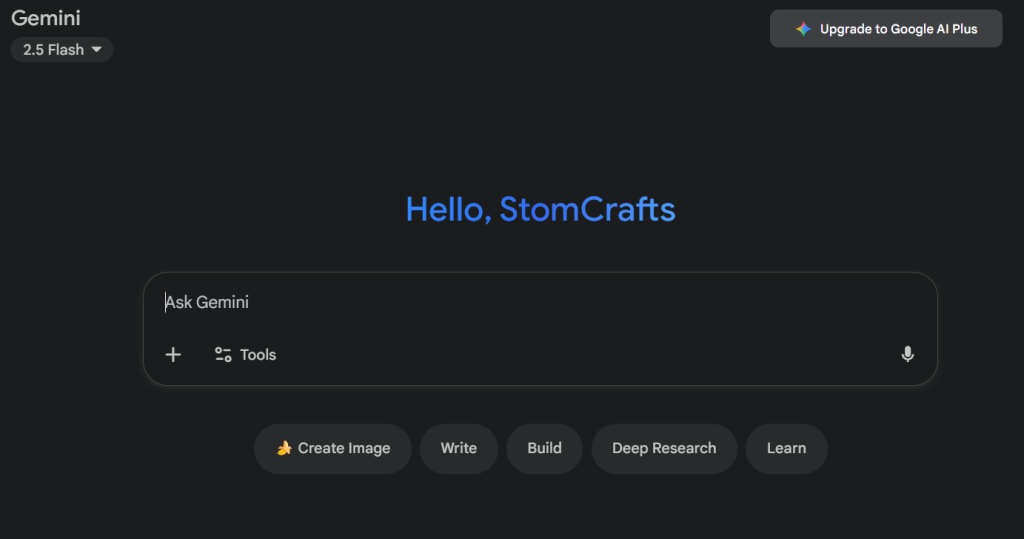
Most users don’t know that Gemini AI (formerly Bard) allows you to create amazing AI-generated images for free if you know where to start. All you need is a Google account, the same one you use for Gmail or YouTube.
Once you log in at gemini.google.com, you’ll have access to text and image generation features similar to what paid AI image tools like Midjourney or Qwen.
2. Using the Right Prompts
The biggest secret to creating perfect AI images lies in your prompt, the description you give Gemini.
Instead of typing “generate a cat photo,” go deeper. Try this:
“A REALISTIC PORTRAIT OF A GOLDEN PERSIAN CAT SITTING ON A VELVET COUCH WITH SOFT MORNING LIGHT, CAPTURED WITH A DSLR CAMERA, WITH ASPECT RATIO 2:1.”
This level of detail helps Gemini understand what kind of image you want, the size, from lighting to texture to camera style.
3. Add Style and Composition Keywords
Gemini AI understands creative details. Include phrases like:
“ultra-realistic”
“cinematic lighting”
“digital art style”
“high resolution”
“photo-realistic”
Combining these with your main description helps you achieve professional-level output without paying for a premium plan.
4. Upscale and Edit for Free
Once your image is generated, you can improve its clarity or remove unwanted parts using free tools like Pixlr, Canva, or Fotor.
These tools allow you to refine your Gemini AI images to match what you’d get from paid tools, perfect for content creators, designers, or social media managers.
However, in a condition where you dont have the time to be editing images, maybe for video content, of automation contents, there might be too much of work for you to do, therefore you might not have the time to edit image, meaning you have to make your prompt very explanatory and clear.
5. Use Chrome Extensions
Some Chrome extensions allow you to connect directly with Gemini AI to generate and download images faster. Extensions like Google Gemini AI Companion or AI Prompt Enhancer and some other AI can help refine your prompts and get better results.


This is what i am looking for, thank you